The BBC Sounds widget will give you quick access to the schedule of your favourite BBC Radio station so you can see what's on now and next at a glance. Tapping on the widget will launch the app on the full schedule.
How to add a widget:
- Update the BBC Sounds app . You’ll need to open the app at least once before the widget becomes available.
- Hold your finger on any app or empty space on the home screen until your apps start jiggling.
- Tap the Edit (or + sign) in the upper left corner.
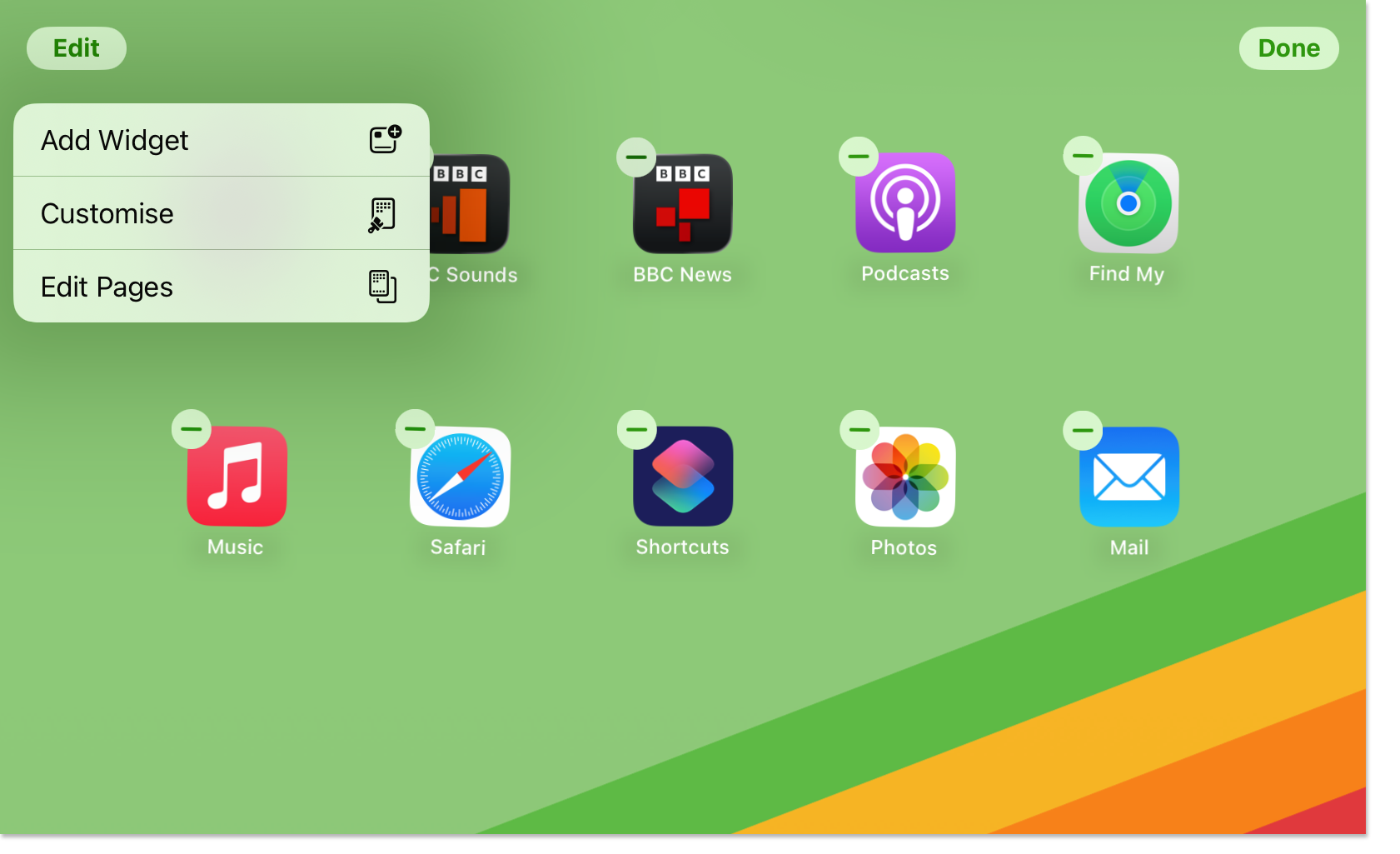
- Select 'Add Widget' and choose BBC Sounds. Slide the widget left or right to choose which view you prefer, then select 'Add Widget' at the bottom to add it to your screen.

How to change Radio station for an existing BBC Sounds widget:
- Hold your finger on any app or empty space on the home screen (or Today View) until your apps start jiggling.
- Tap the BBC Sounds widget.
- Click 'Edit Widget' and select your preferred BBC Radio station.
- Click outside of the Widget to confirm your selection.
How to change Radio station on the BBC Sounds widget on the lock screen:
- Long-press on the lock screen.
- Select 'Customise.'
- Select your lock screen. This will access the 'Edit' mode.
- Tap the BBC Sounds widget. Tap again to find the list of stations.
- Select the station you'd like to show.
For help with widgets on iOS, check the following Apple Support pages*: Use widgets on your iPhone and iPod Touch and Use widgets on your iPad
(*The BBC is not responsible for content on third party websites)
